
Asennusohjeet (EN)
Huom! Mikäli sinulla on kysyttävää Checkbotin asennuksesta tai ominaisuuksista PROFIS Engineeringissä, ota yhteyttä paikalliseen asiantuntijatiimiimme tämän lomakkeen kautta. Alla alkuperäiset asennusohjeet englanniksi.
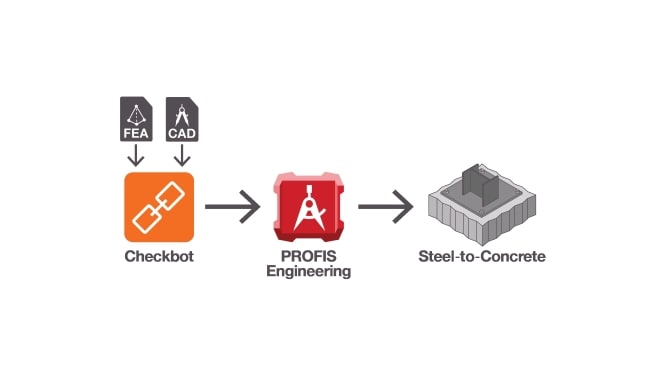
Hilti Group and IDEA StatiCa, global leaders in steel-to-concrete and steel-to-steel structural connections respectively, have partnered to introduce a new plugin to enhance the standard design, calculation, and construction workflow for all types of projects. The integration of Hilti Group's PROFIS Engineering Suite with IDEA StatiCa's Checkbot improves accuracy, safety, and efficiency in the construction industry. PROFIS Engineering Suite, which has a presence in over 70 countries, allows the design and calculation of various structural connections under a range of conditions. It provides the latest anchor approvals, a variety of design methods, and a comprehensive calculation report.
Checkbot simplifies communication from various structural design and BIM software by allowing the import of thousands of connections with their loads and geometries, where you can check all important information in each of these connections before exporting them to PROFIS Engineering Suite or other software developed by IDEA StatiCa. This ensures that all information is correctly and quickly mapped across the end-to-end design and calculation workflow.
This integration brings several benefits, including time saving and simplification, easier organization, better collaboration, and increased accuracy and quality. By setting a new standard for the structural engineering and construction end-to-end workflow, this empowers engineers to take their projects to the next levels in terms of quality, efficiency, and precision while providing peace of mind. By adopting this unified approach, structural engineers are well-prepared for the challenges the industry faces and those that will come.
Follow the guides below to learn how to get started. If you own:
• Tekla Structures, Revit, Advance Steel, Robot, SCIA Engineer, SDS2, STAAD.PRO, AxisVM, RFEM 5 and RSTAB 8 (Category 1)
• RFEM 6 and RSTAB 9 (Category 2)
• SAP 2000 and ETABS (Category 3)
• RISA-3D and RAM Structural Systems (Category 4)
Category 1: Automated integration
Software supported by this installation procedure: Advance Steel, AxisVM, Revit, Robot, RFEM 5, RSTAB 8, SCIA Engineer, SDS2, STAAD.PRO, Tekla Structures. The following list is supported directly by the companies developing this software: Tekla Structural Designer, FEM-Design, SPACE GASS, Diamonds/BIM Expert, STRAP and Straus 7
The IDEA StatiCa BIM link installer automatically launches after the installation of any IDEA StatiCa software and can also be accessed manually from IDEA StatiCa's main interface. It locates all structural design and BIM software packages on your machine. Once integrated, IDEA StatiCa Checkbot is available through the FEA/BIM partner application, enabling the seamless export of baseplate data to PROFIS Engineering.
Before you start: Ensure you are registered with us HERE after registration you can enjoy all the benefits of premium for 30-days including Checkbot, after finalizing this period, you can purchase a PROFIS Engineering Premium License. Confirm that your required FEA/BIM software is installed and up to date, only the two latest versions are supported. Then follow these steps:
- Download and Account Setup: If you are not an existing IDEA StatiCa user, Create an account (here) and download their latest suite version (here). You will be able to still access Checkbot for free after the 14-days trial. After your 14-days trial, you will be able to access Checkbot for free.
- Installation: Install the suite as an administrator. The required plugin to connect with PROFIS Engineering is included in the download package.
- BIM Link Activation: During installation, you will be prompted to “Activate your BIM links.” Ensure this step is completed successfully.
- Finalizing Installation: Click “Install.” Once the installation is complete and displays green, you will find a new tab in your FEA/BIM software for exporting to Checkbot.
- Exporting Data: Once the file is imported to Checkbot, under the “Hilti PROFIS” tab, click the red logo of PROFIS Engineering to transfer your data and start designing your connection.
Category 2: Automated external integration
Software supported by this installation procedure: RFEM 6, RSTAB 9.
The IDEA StatiCa BIM link installer automatically launches after the installation of any IDEA software and can also be accessed manually from IDEA StatiCa's main interface. It will locate all structural design and BIM software packages on your machine. The BIM link to Checkbot is NOT available in the partner application user interface. It is a separate executable file that you can find on your desktop and needs to be run every time a user wants to proceed with an export.
Before you start: Ensure you are registered with us HERE, after registration you can enjoy all the benefits of premium for 30-days including Checkbot, after finalizing this period, you can purchase a PROFIS Engineering Premium License. Confirm that your required FEA/BIM software is installed and up to date, only the two latest versions are supported. Then follow these steps:
- Download and Account Setup: If you are not an existing IDEA StatiCa user, you can create an account (here) and download their latest suite version (here). You will be able to still access Checkbot for free after the 14-days trial. After your 14-days trial, you will be able to access Checkbot for free.
- Installation: Install the suite as an administrator. The required plugin to connect with PROFIS Engineering is included in the download package.
- BIM Link Activation: During installation, you will be prompted to “Activate your BIM links.” Ensure this step is completed successfully.
- Finalizing Installation: Click “Install.” Once the installation is complete and displays green, you will find a new shortcut icon on your desktop for exporting to Checkbot. Ensure you open the software and navigate to the menu “Options and Program”, then activate the Web Service as part of your Dlubal package to enable data transfer.
- Exporting Data: Once the file is imported to Checkbot, under the “Hilti PROFIS” tab, click the red logo of PROFIS Engineering to transfer your data and start designing
Category 3: Manual integration
Software supported by this installation procedure: ETABS and SAP2000.
IDEA StatiCa Checkbot is integrated manually according to a step-by-step tutorial. Instructions are accessible through a URL in the BIM link installer, via IDEA StatiCa's web pages, or by following the steps below.
Before you start: Ensure you are registered with us HERE, after registration you can enjoy all the benefits of premium for 30-days including Checkbot, after finalizing this period, you can purchase a PROFIS Engineering Premium License. Confirm that your required FEA/BIM software is installed and up to date, only the two latest versions are supported. Then follow these steps:
- Download and Account Setup: If you are not an existing IDEA StatiCa user, you can create an account (here) and download their latest suite version (here). You will be able to still access Checkbot for free after the 14-days trial. After your 14-days trial, you will be able to access Checkbot for free.
- Installation: Install the suite as an administrator. The required plugin to connect with PROFIS Engineering is included in the download package.
- BIM Link Activation: During installation, you will be prompted to “Activate your BIM links.” Ensure this step is completed successfully.
- Finalizing Installation: Click “Please install our add-in for your SAP2000 (here), ETABS
- (here)“, and follow the activation guideline provided by our partners from IDEA StatiCa.
- Exporting Data: Once the file is imported to Checkbot, under the “Hilti PROFIS” tab, click the red logo of PROFIS Engineering to transfer your data and start designing your connection.
Category 4: File based
Software supported by this installation procedure: RAM Structural System and RISA-3D.
File-based import to IDEA Checkbot. There is no direct communication between IDEA Checkbot and the partner application.
Before you start: Ensure you are registered with us HERE, after registration you can enjoy all the benefits of premium for 30-days including Checkbot, after finalizing this period, you can purchase a PROFIS Engineering Premium License. Confirm that your required FEA/BIM software is installed and up to date, only the two latest versions are supported. Then follow these steps:
- Download and Account Setup: If you are not an existing IDEA StatiCa user, you can create an account (here) and download their latest suite version (here). You will be able to still access Checkbot for free after the 14-days trial. After your 14-days trial, you will be able to access Checkbot for free.
- Installation: Install the suite as an administrator. The required plugin to connect with PROFIS Engineering is included in the download package.
- Finalizing Installation: Follow the workflow using these links: RISA-3D (here) and RAM Structural Systems (here).
- Exporting Data: Once the file is imported to Checkbot, under the “Hilti PROFIS” tab, click the red logo of PROFIS Engineering to transfer your data and start designing your connection.
LIST OF ALL FEA AND CAD SOFTWARE
SUPPORTED BY CHECKBOT
(Please see links below)

Software, Vendor, Type
Tekla Structures, Trimble, CAD
Autodesk Revit, Autodesk, FEA/CAD
Autodesk Advanced Steel, Autodesk, CAD
Autodesk Robot, Autodesk, FEA
ETABS, Csi, FEA
SAP2000, Csi, FEA
SCIA Engineer, Nemetschek, FEA
SDS2, Allplan, CAD
STAAD.Pro, Bentley, FEA
AxisVM, Inter-CAD kft, FEA
RFEM 5, Dlubal, FEA
RFEM 6, Dlubal, FEA
RSTAB 8, Dlubal, FEA
RSTAB 9, Dlubal, FEA
RAM Structural System, Bentley, FEA
RISA, RISA Tech, FEA
Sofistik (SAF), Sofistik, FEA
Tekla Structural Designer, Trimble, FEA
FEM-Design, StruSoft, FEA
SPACE GASS, SPACE GASS, FEA
Diamonds / BIM Expert, BuildSoft, FEA/CAD
STRAP, Atir Engineering, FEA
Straus 7, EnginSoft, FEA
